mleapps 01 / HawPeek

01 / File management

Explorer forgets. HawPeek remembers.

A fast, light file manager for Windows that bookmarks your open spaces—windows, panes, and tabs that reopen where you left them—and peeks inside any file with one key.

Microsoft Store listing in review See how it works Privacy
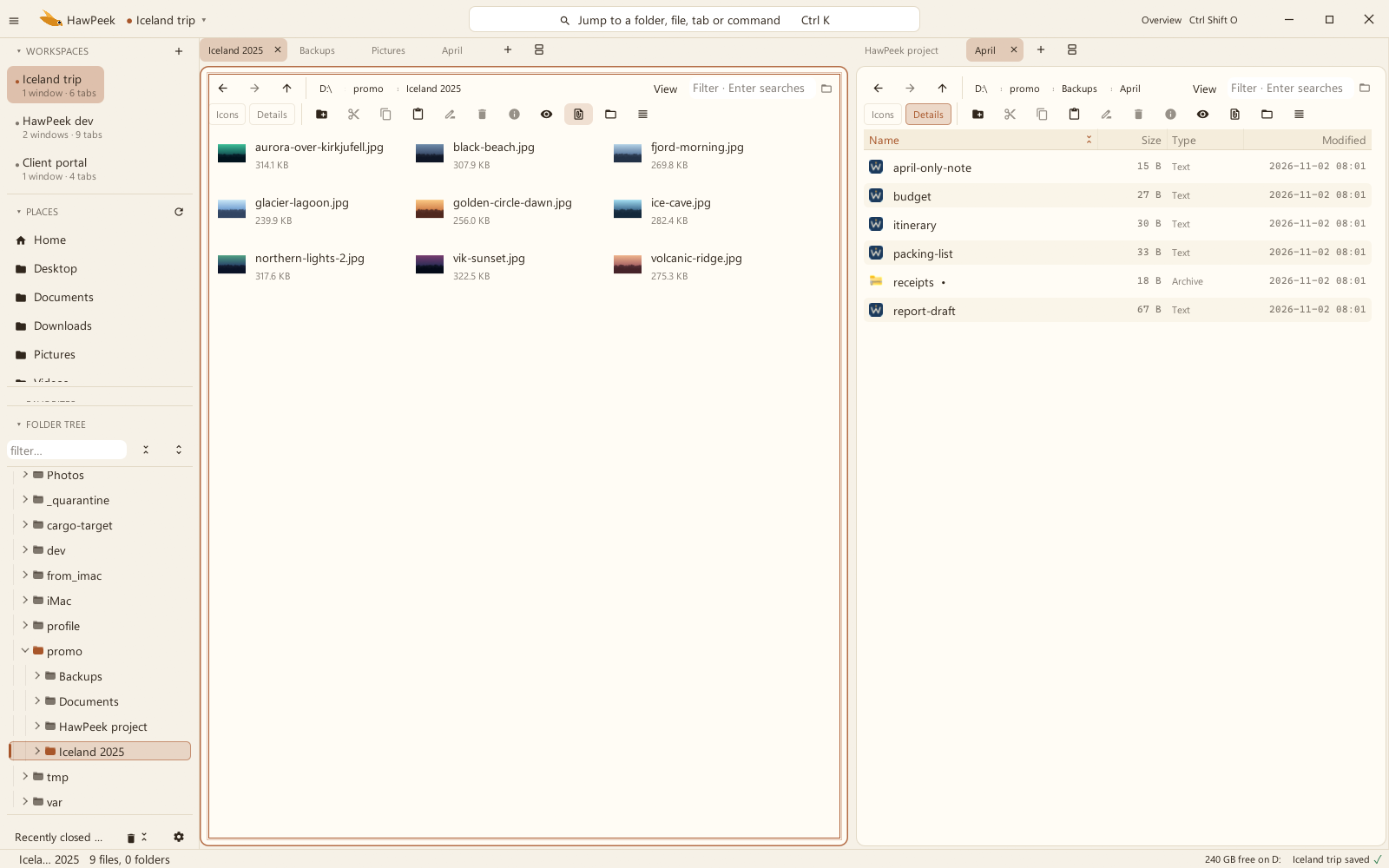
HawPeek paper theme with dual panes, tabs, and a saved Iceland trip workspace
Workspace ledger
Workspace
Iceland trip
Windows
1
Panes
2
Tabs
6
Paths
restored

01 / Paths & workspaces

Bookmark your open spaces.

That is the peek in HawPeek: a hawk's-eye view over your working directories. Save your whole arrangement—windows, panes, and tabs—as a named workspace, and let HawPeek collect the paths you reach for most, so the file or folder you need is never more than a peek away.

  • Windows, panes, tabs, pathsEverything reopens together—your whole working setup, not just a folder.
  • Favorites and recent placesPin what matters; HawPeek ranks the rest by how often you visit.
  • Named workspacesOne setup per project—switch contexts without losing the previous one.
  • Resurrect the accidental closeRecently closed can bring back a tab, a window, or an entire workspace.

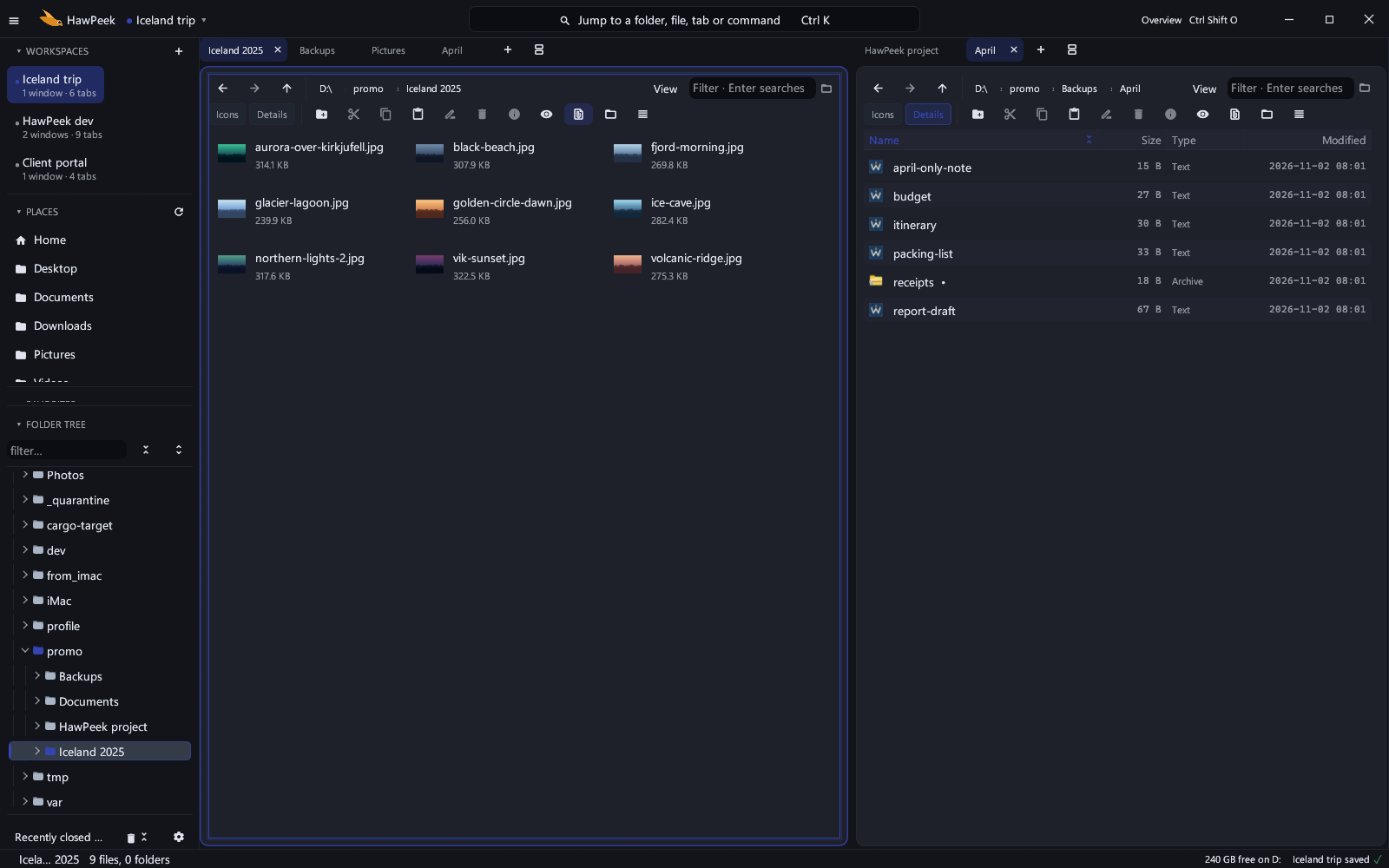
HawPeek window with dual panes, an independent tab strip on each pane, and workspaces in the sidebar
Tabs on every pane, workspaces in the sidebar—the whole session comes back.

02 / Fast and light

HawPeek technical profile

Executable
10.9 MiB
Feel
Quick to start, snappy on huge folders
Platform
Windows 10 1809+ / 11, x64
Privacy
No account, subscription, or telemetry

03 / Preview

Peek, don't open.

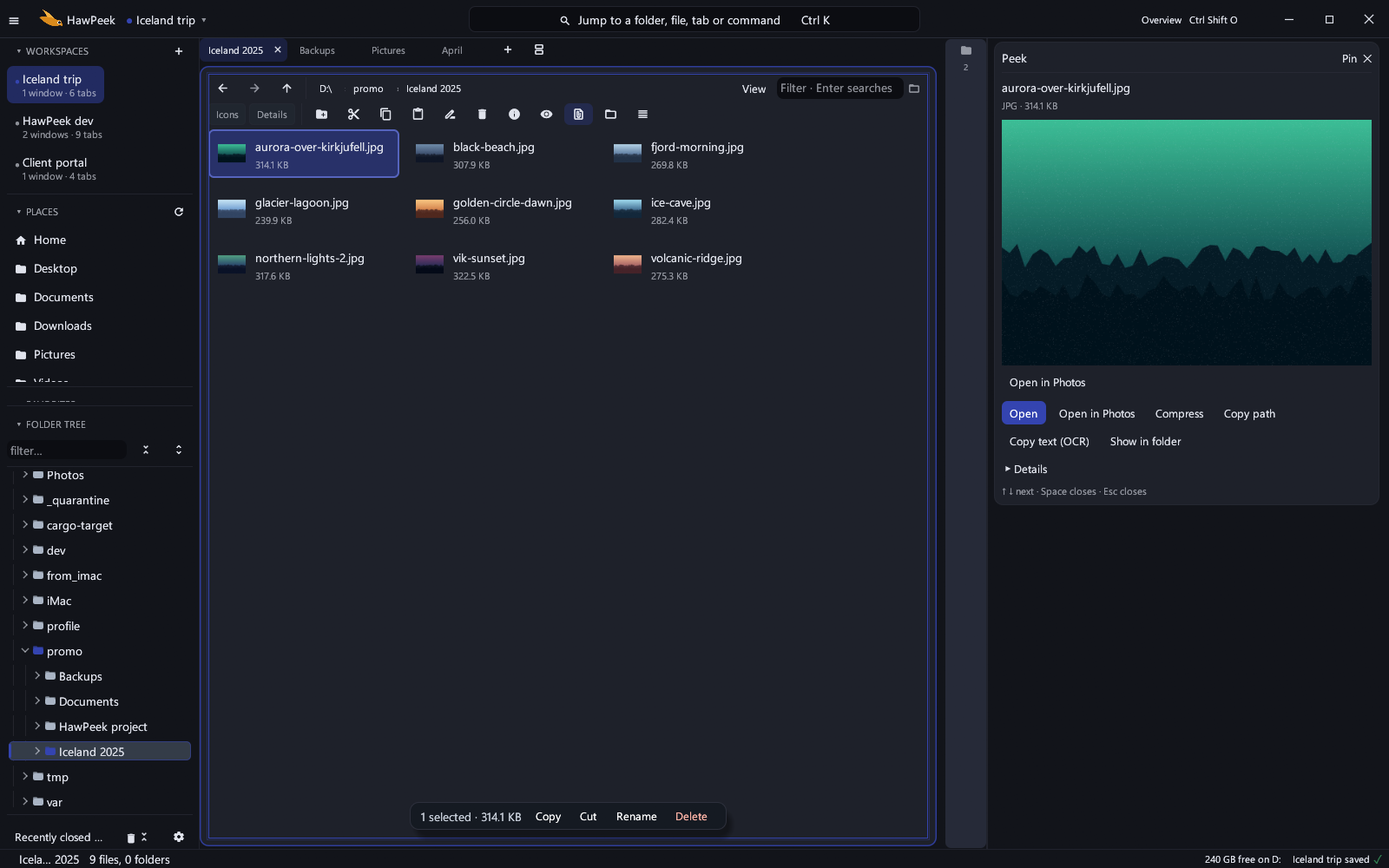
  • Press Space on any file—images, text, and PDFs appear instantly in a floating preview.
  • The list keeps moving behind the preview: arrow to the next file, or peek inside folders too.
  • Icons and Tiles show real thumbnails, not generic icons.
Spacebar preview of a photo floating over the HawPeek file listing
One key opens the preview; the file list remains live behind it.

04 / File operations

Panes and easy moves.

  • Copy or move across panes—or plain Ctrl+C, Ctrl+V—jobs run in the background with taskbar progress and full undo/redo.
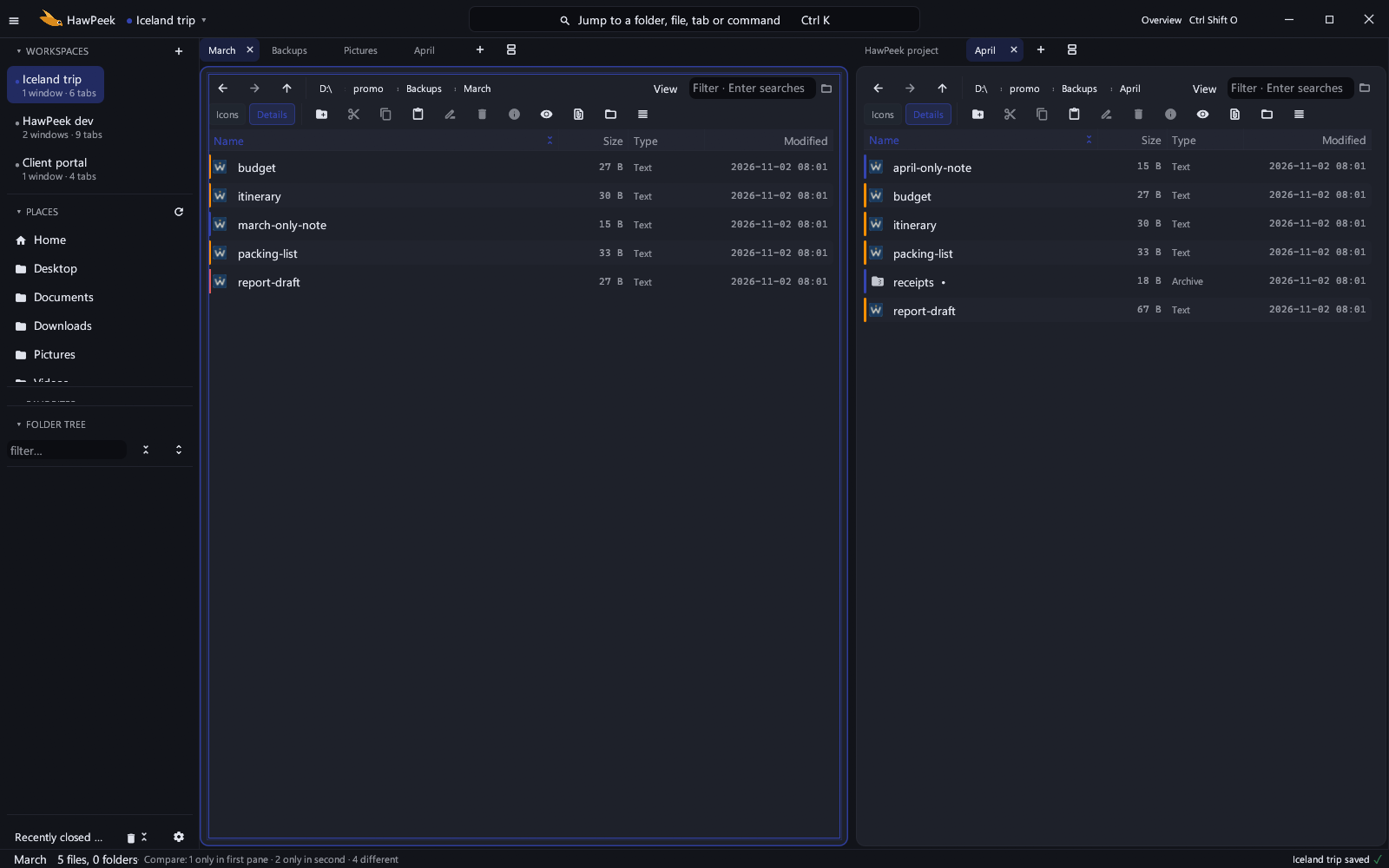
  • Compare two folders and mark what differs—size, date, or only-here.
  • Bulk rename previews every change before it lands.
Two HawPeek panes comparing March and April folders with changed and only-here files marked
Side-by-side comparison keeps moves deliberate.

05 / Search and analysis

Find anything, know your disk.

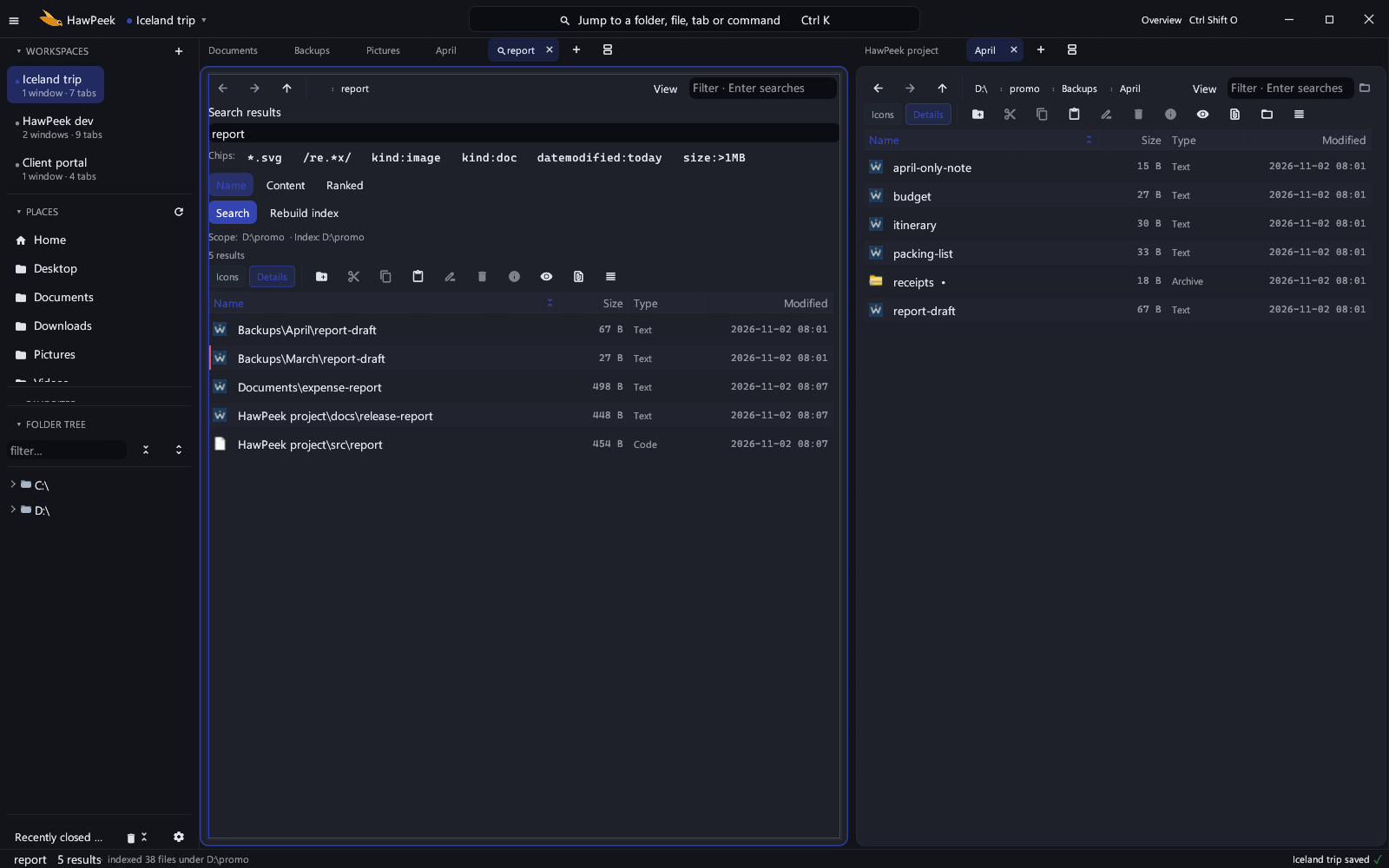
  • Search by name, file content, or Ranked—regular expressions supported.
  • Open file location jumps straight to the result's folder.
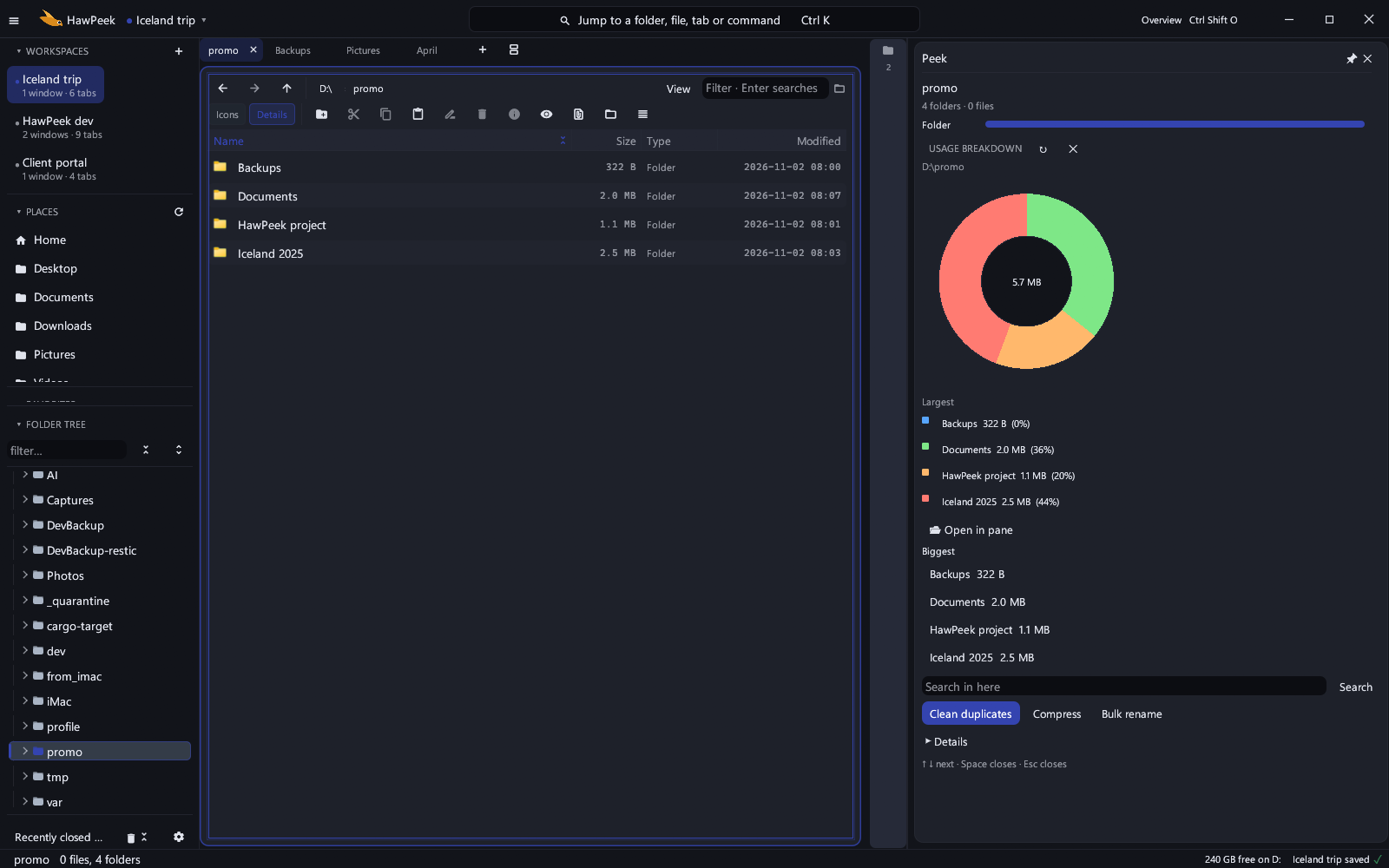
  • The disk-usage analyzer drills into the space hogs; the duplicate finder reclaims the rest.
Ranked HawPeek search results across folders
Ranked results stay tied to their folders.
HawPeek disk usage donut with the largest items
See where the space went without leaving the window.

06 / Windows-native

Feels like Windows, only lighter.

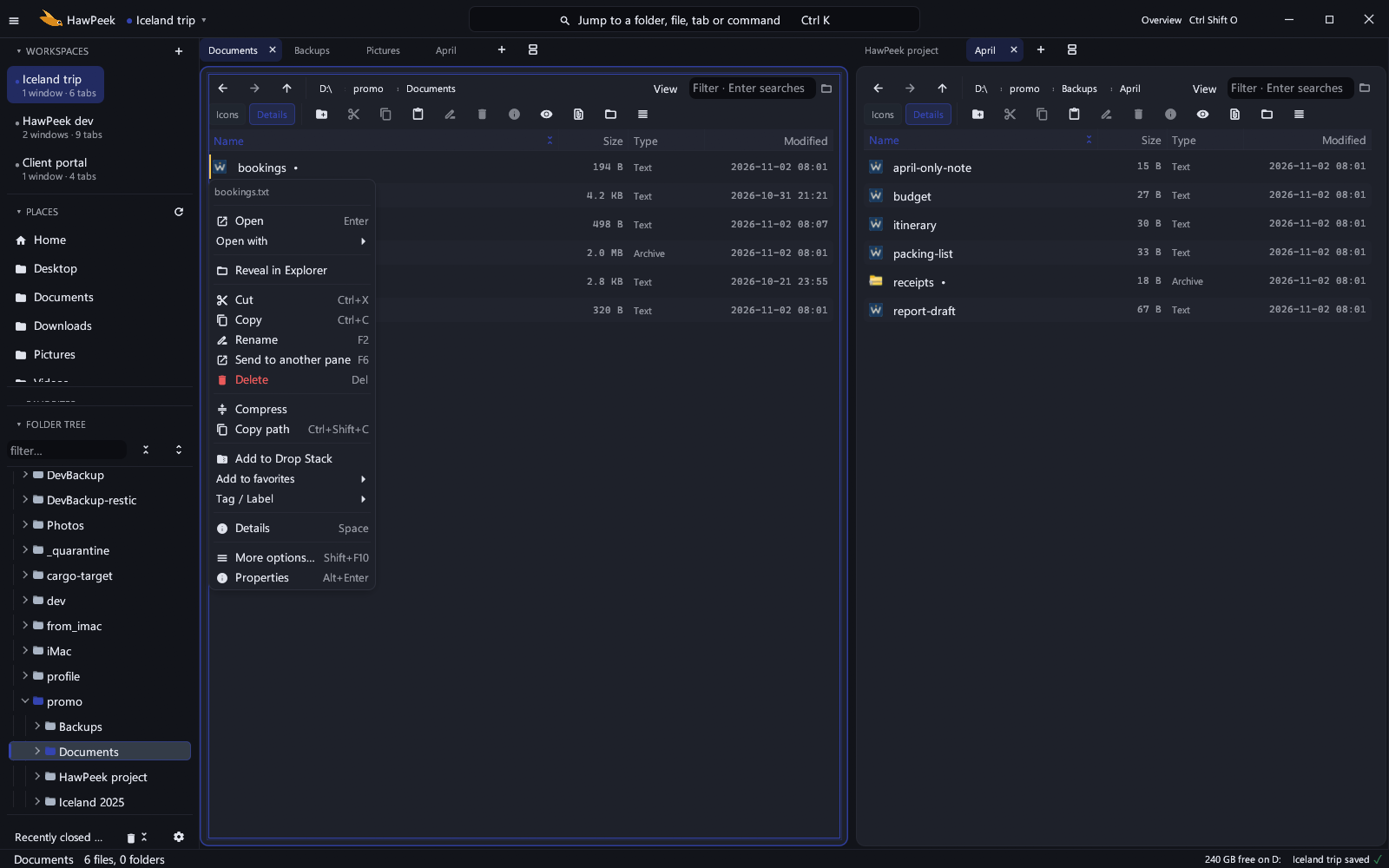
  • The real right-click menu includes third-party verbs such as 7-Zip.
  • Follows Windows light, dark, and High Contrast; interface zoom, Ctrl+K, and screen-reader labels are built in.
  • Optionally make HawPeek your default file manager, including Win+E.
The real Windows context menu inside HawPeek
Native shell actions stay available.
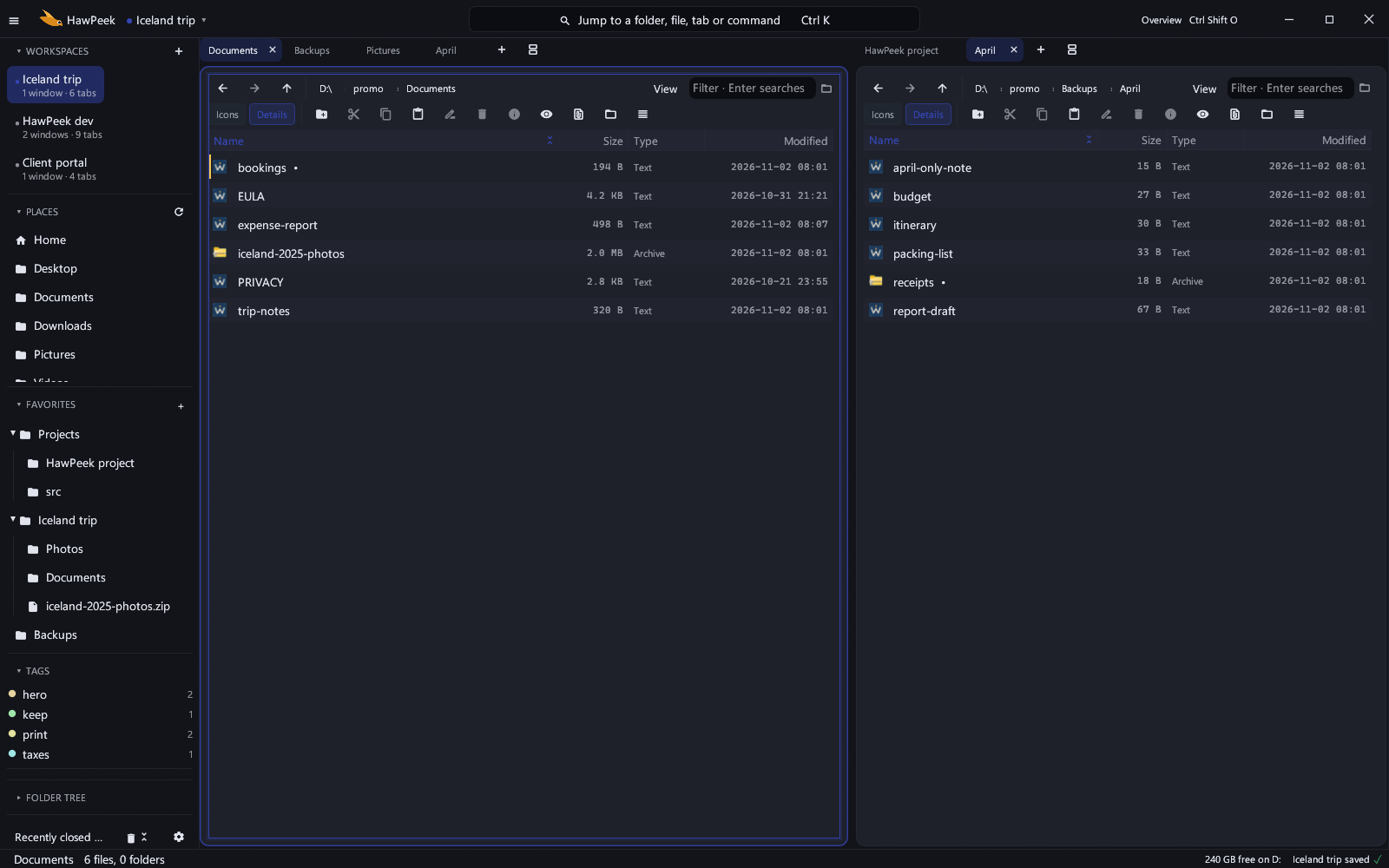
HawPeek sidebar with Favorites, Tags, labels, and Places
Your organization stays within reach.

07 / Overview

Every workspace at a glance.

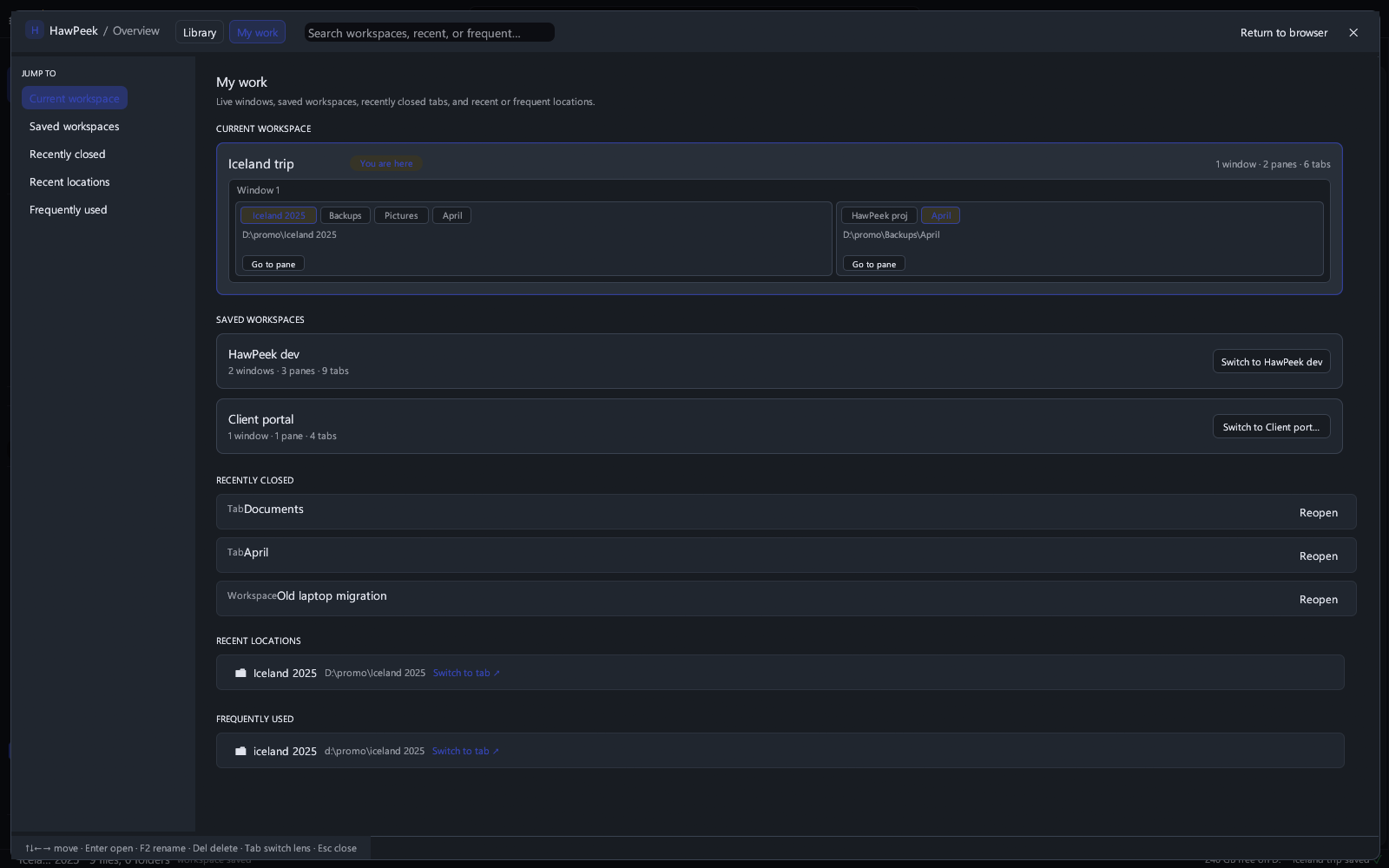
  • Ctrl+Shift+O opens the Overview: every saved workspace as a live card.
  • Switch straight into a workspace, or close the ones you no longer need.
  • Recently closed resurrects a tab, a window, or a whole workspace.
HawPeek Overview showing workspace cards and Recently closed entries
The Overview is the capstone of session management—not the whole story.

08 / Availability

Fast. Light. Ready to remember.

HawPeek is coming to the Microsoft Store as a one-time purchase—no subscription.

Microsoft Store listing in review The download link lands here at launch. Read the privacy policy [email protected]